Set-up guide
Setting up the Pipedrive CRM Connector
From a fresh install to a form that puts every enquiry in the right stage of your pipeline, with a way to test it without sending anything.
1. Before you start
You need three things:
- Gravity Forms 2.7 or later, active, with the form you want to connect already built.
- Your Pipedrive company domain. It is the first part of the address you sign in at — for acme.pipedrive.com it is acme.
- A Pipedrive API token. In Pipedrive, open your profile picture, then Personal preferences, then API.
The token belongs to one Pipedrive user, and everything the plugin creates is created as that user unless a feed names a different owner. Use a user who will stay with the company; if that user regenerates their token, the connection stops until the new one is entered.
2. Install and activate
Download the zip from your account. In wp-admin go to Plugins, then Add New, then Upload Plugin, choose the zip and activate it. Nothing happens yet: the plugin sends nothing until an account is connected and a form has a feed.
3. Connect your Pipedrive account
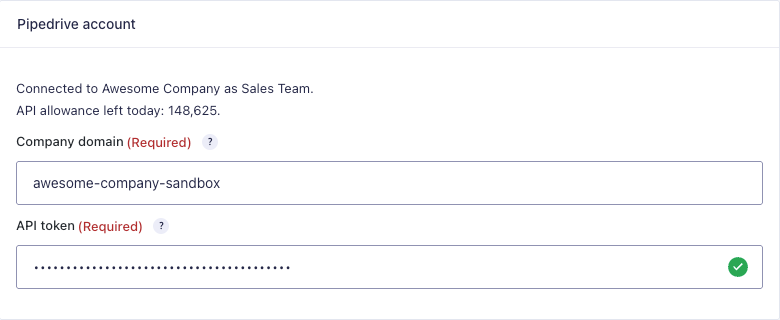
Go to Forms, then Settings, then the Pipedrive tab. Enter the company domain and the API token and save. The top of the page should then read Connected to <your company> as <the token's user>, with how much of the day's API allowance is left.
If it does not connect, the message says why: usually the token was pasted with a space, or its user does not have permission to create deals.
On a site where the token should not sit in the database, define AX_PIPEDRIVE_COMPANY_DOMAIN and AX_PIPEDRIVE_API_TOKEN in wp-config.php instead. The settings fields are then shown but not used.
4. Add a feed to a form
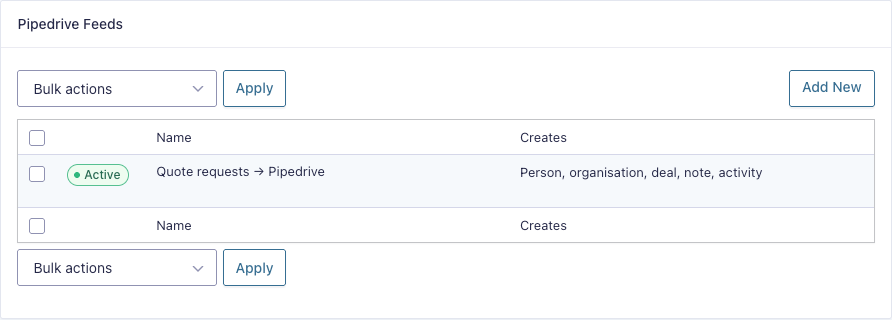
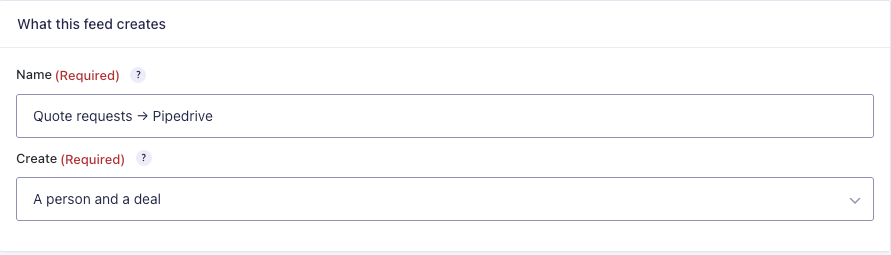
A feed is one form's instructions for Pipedrive. Open the form, then Settings, then Pipedrive, then Add New. Give the feed a name that will make sense to whoever reads the list in a year.
Then choose what a submission becomes. A person and a deal is for enquiries: someone asking for a quote or a call. A person only is for forms that are not an opportunity, such as a general contact form or a newsletter sign-up.
5. Map the person
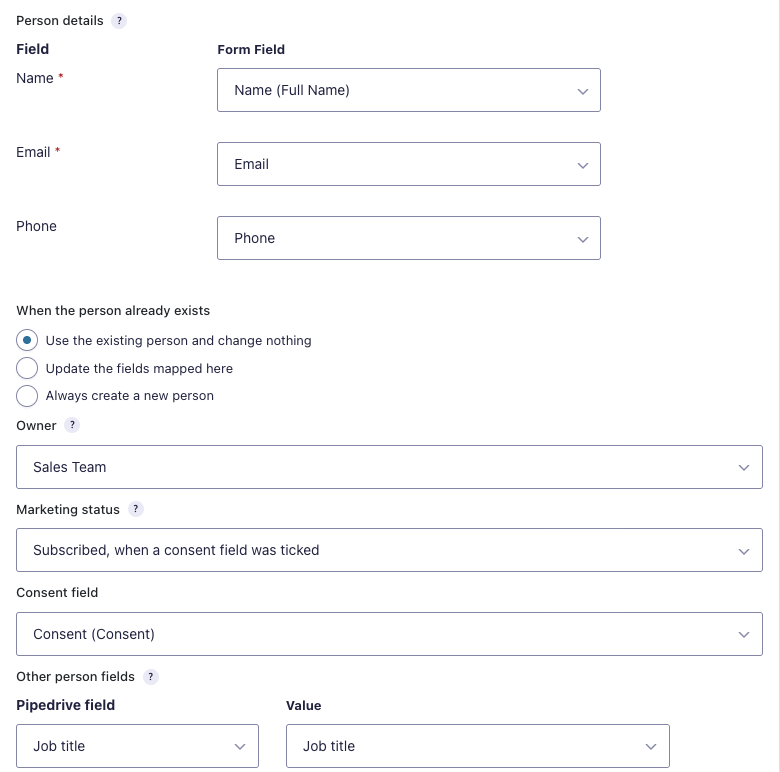
Pick the form fields that hold the name, email address and phone number. The email address is how the plugin recognises someone who already exists in Pipedrive, so it is required.
Decide what should happen when the person already exists: use them as they are, update the fields you have mapped, or always create a new person. Using the existing record is the usual choice.
Marketing status is what Pipedrive uses to decide who may be emailed. Leave it alone unless the form actually asks for consent; if it does, choose Subscribed, when a consent field was ticked and pick the consent field.
Under Other person fields you can fill any of your own Pipedrive person fields, from a form field or from text you type. Merge tags work in typed text.
6. Organisation (optional)
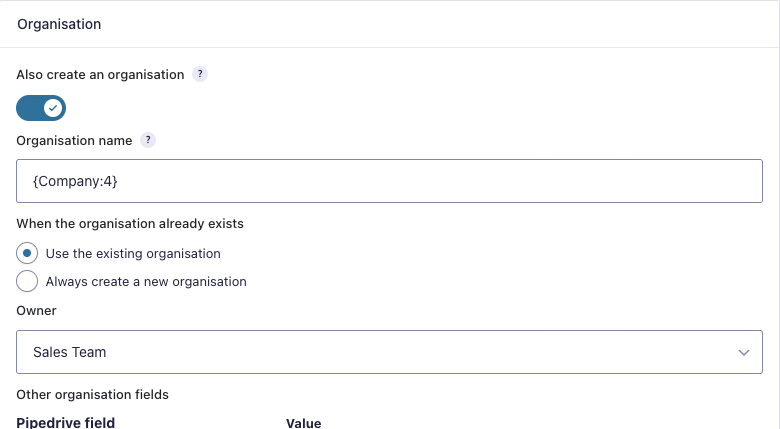
If the form asks for a company, turn on Also create an organisation and give it a name — usually a merge tag for the company field. The person and the deal are linked to it. Existing organisations are matched by exact name.
7. The deal
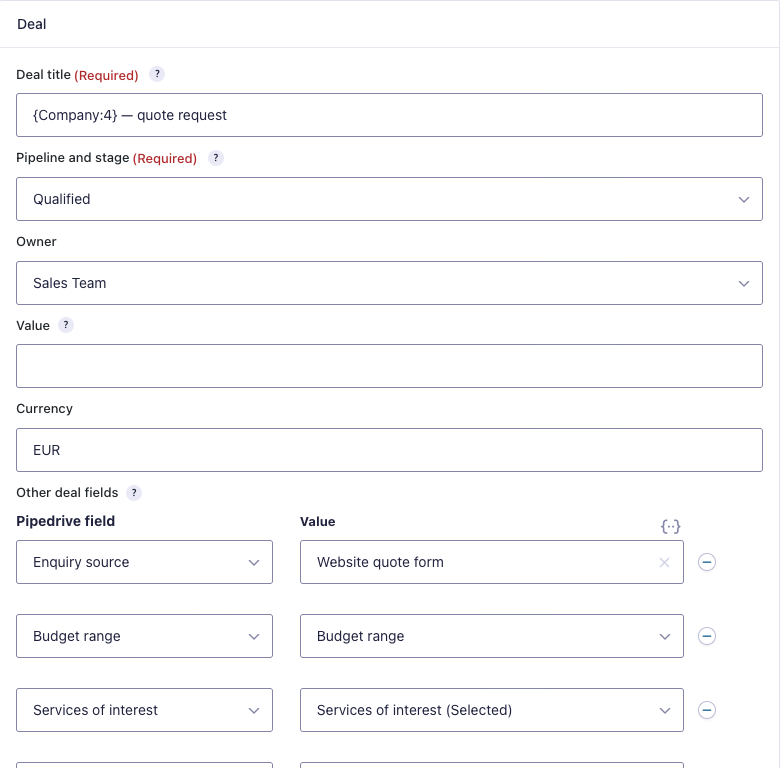
Shown when the feed creates a deal. The title is what the sales team sees first in the pipeline, so choose it with them; merge tags work, and the person's name is the default.
Pipeline and stage is where a new enquiry lands, usually the first stage of the pipeline the team already works. The list comes from your account. Owner defaults to the token's user.
Other deal fields maps your own Pipedrive deal fields. A single-line Pipedrive field holds 255 characters; anything longer is shortened on a word or item boundary, marked with an ellipsis, and the full value is kept in the note.
8. Note and activity
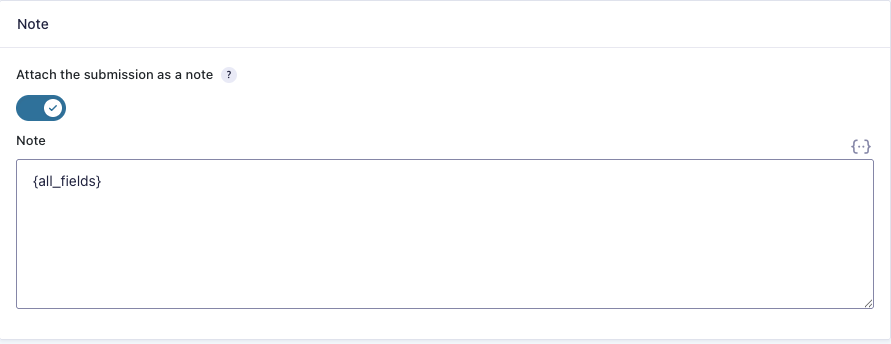
The note is on by default and holds the whole submission, so whoever picks the deal up can read exactly what was asked. It goes on the deal, or on the person when there is no deal. You can replace {all_fields} with your own template.
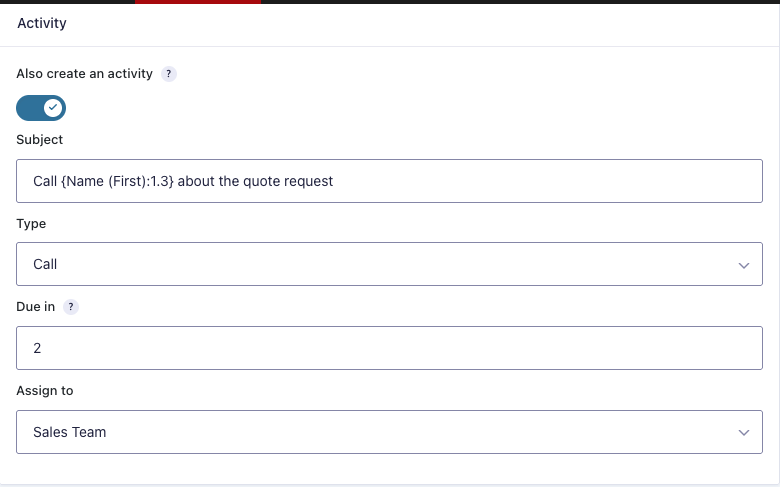
An activity is a follow-up task for someone on the team: pick a type, a subject, how many days out it is due, and who it is assigned to. Pipedrive can also do this itself with a workflow automation on deals entering a stage, which covers deals the team types in by hand as well — often the better place for it.
9. When to send
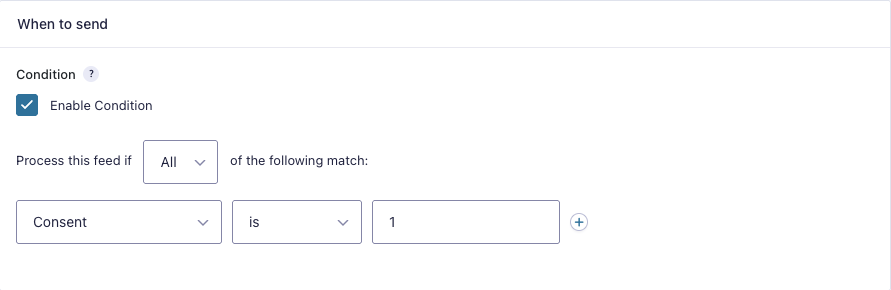
Turn on the condition to send only some submissions. The common case: a marketing form where only people who ticked the consent box should reach the CRM. Any field on the form can be tested.
10. Test it without sending anything
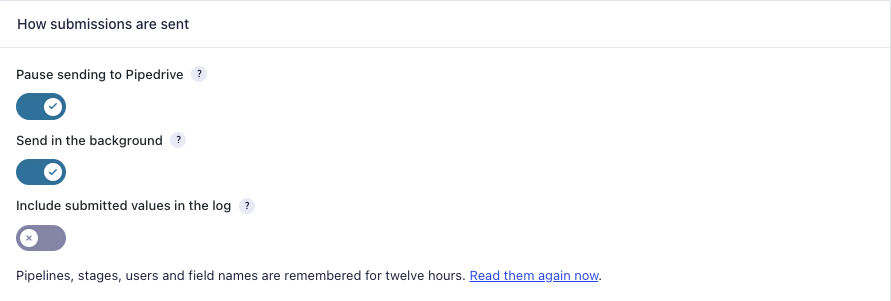
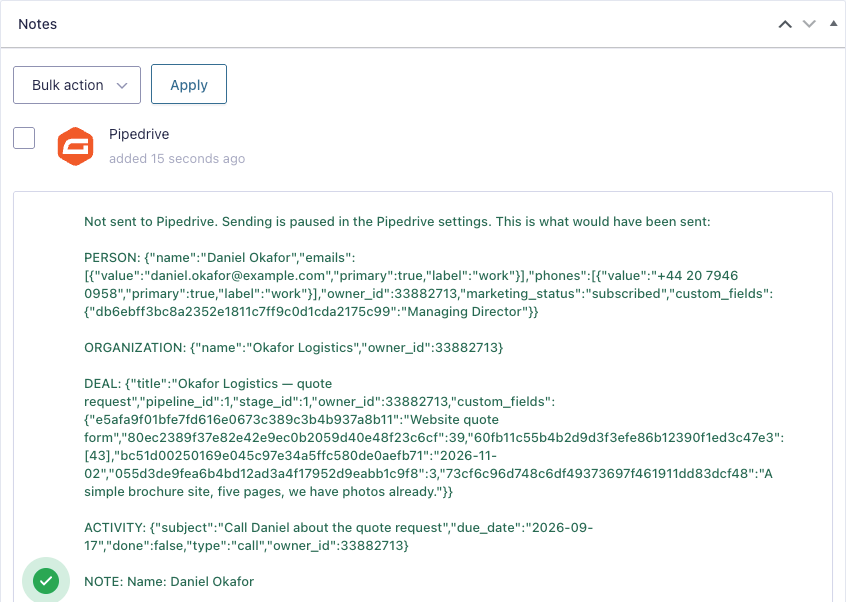
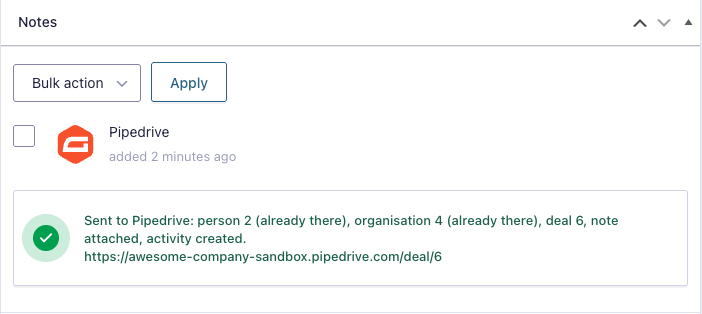
Back on Forms, then Settings, then Pipedrive, turn on Pause sending to Pipedrive. Submit the form. Open the entry under Forms, then Entries: the Pipedrive note shows the exact person, deal, organisation and activity it would have sent, and the note text, without anything reaching your account.
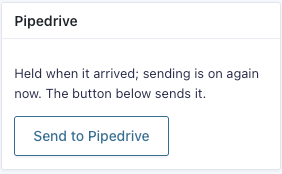
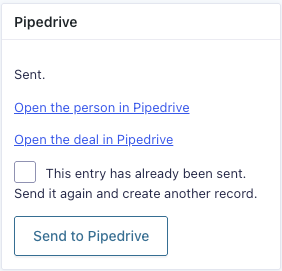
Read it against your pipeline. If a value landed in the wrong field, fix the feed and submit again. When it is right, turn the pause off. Each entry that arrived while paused has a Send to Pipedrive button on its own screen, so nothing from the test period is lost unless you want it to be.
A warning shows on every Gravity Forms screen while the pause is on.

11. What you see after a real submission
Every submission gets a note on its entry: what was created, whether the person was new or already there, and links straight into Pipedrive. If Pipedrive refused something, the note says what it said, and the entry keeps the submission in full. Fix the cause, then press Send to Pipedrive on the entry.
Sending happens in the background by default, a few seconds after the form finishes, so nobody waits for Pipedrive. If your host blocks the loopback requests WordPress uses for background work and feeds stop running, turn Send in the background off in the settings.
12. Working on a staging copy
A staging copy of your site carries the connector's settings with it, so a test submission there would create a real deal. The pause switch is one answer, but it travels with the database too and the next copy would arrive with it off. For a copy that must never send, add this to a file in wp-content/mu-plugins/ on the staging site:
add_filter( 'ax_pipedrive_enabled', '__return_false' );Everything then behaves as it does when paused: entries record what would have been sent, and nothing leaves the site. The settings screens still read your pipelines and fields, so feeds can be built and checked there.
13. Good to know
- A Pipedrive field with a fixed set of options is filled by matching the submitted text to an option's label. If nothing matches, the field is left empty and the note says so — a label is never sent where an option is expected.
- Date fields take a date. A free-text answer such as “sometime in May” cannot fill one; map it to a text field or leave it to the note.
- Ticked checkboxes are joined with semicolons, so a choice containing a comma stays in one piece.
- Pipelines, stages, users and field names are remembered for twelve hours. If you add a field in Pipedrive and it is not offered yet, use Read them again now on the settings page.
- The plugin's log contains no submitted values unless you turn Include submitted values in the log on. Turn it off again when you are done investigating.
- It sends one way only. Changes made in Pipedrive do not come back, and edits to an entry are not sent again unless you press the button.
Stuck?
Write to [email protected] with the site, the form, and what the entry's Pipedrive note says. That note is usually the whole answer.